
Scroll
Smooth wheel scrolling and per-device direction.
Voting without an email
Your votes are saved in this browser. Add your email to get updates.
Smooth wheel scrolling and per-device direction.
Brightness and volume for external displays over DDC.
Per-keyboard key mappings.
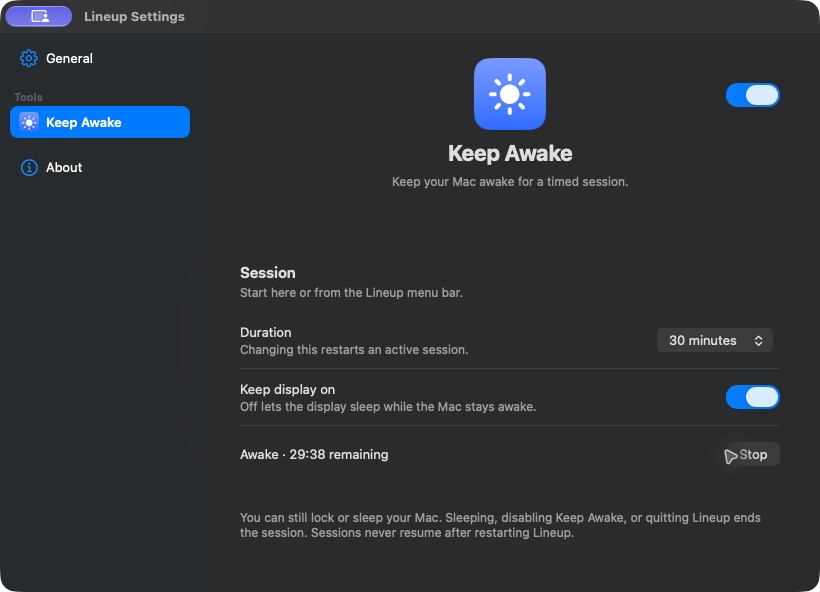
Keep Awake is a new tool that stops your Mac from going to sleep while it's idle, for as long as you choose. Turn it on in Settings, then start a 15-minute, 30-minute, 1-hour or 2-hour session from its page or from the Lineup menu bar. You see the time left and can stop early. Keeping the display on is a separate option, off by default. A session ends when time runs out, when you put the Mac to sleep, or when you turn the tool off or quit, and it never resumes on its own.
World Clock is a new optional tool with its own menu bar panel. Search cities and time zones offline, compare their hours with yours, look up to 24 hours ahead or back or enter an exact time, and see the next sunrise and sunset. Pin one place to show its live time in the menu bar. It needs no location permission or network connection.
Zones remembers where you last placed each app with a shortcut or a drag, and puts the app's first window back in that zone the next time it opens. Windows already open stay where they are. Editing a display's layout clears its remembered placements, so place the app again to teach it the new layout.
Zone shortcuts are now numbered across all your displays instead of restarting at 1 on each one, so a shortcut keeps pointing at the same display's zone as monitors connect and disconnect. A shortcut for a display that isn't connected does nothing rather than moving a window somewhere else.
In Settings > General, pick Stable for tested releases, as before, or Nightly to get the newest builds first, which may be less reliable. Going back to Stable waits for the next Stable release; Lineup never downgrades itself.
Lineup is now a set of tools in one menu bar app. Each tool has its own page in Settings, with a switch at the top to turn it on or off:
Cycler and Hyperkey start off, so the update never takes over new shortcuts or your Caps Lock. Your layouts, shortcuts and permissions carry over, and a short What's New window shows the changes once.
Settings now has a sidebar with General, each tool and About. Shortcuts show as key caps, a combo that's already taken names the tool using it, and the Zones page has Open Layout Editor…, so you can reach the editor with the menu bar icon hidden.
If you used the separate Cycler app, Lineup imports its shortcuts and Hyper Key setup and offers to show the old app so you can remove it. Lineup asks for Input Monitoring only when you turn Hyperkey on.
You can now hide Lineup's menu bar icon and keep every shortcut and drag working. Turn off Show in menu bar in Settings. To get back to Settings, open Lineup again from Applications or Spotlight. If a global shortcut can't be registered, Settings shows it with a Retry button, so you can still fix it with the icon hidden.
With more than one display connected, Edit Layout… now opens the editor on every monitor, and each display's layout saves on its own. Your first click on a second display edits the zone instead of only selecting the window, and Return, Esc, Save and Cancel act on the monitor you're pointing at.
Lineup now checks for new versions in the background and installs them in place, so you no longer download a new disk image for each release. Every update is signed, and Lineup installs only the real thing. You can still check right away from the menu bar icon with Check for Updates….
Snapping by drag no longer has to use Shift. In Settings, record a modifier, another key or a key combination as the drag bind. Lineup now waits for the window itself to move before snapping, so dragging on a canvas in a design app no longer starts a snap. Settings were also rebuilt with native macOS controls.
Lineup is now notarized by Apple and signed with a stable identity. macOS opens it without the unidentified developer warning, and keeps your Accessibility permission across updates instead of asking again each time.
Lineup is now a universal app, running natively on both Apple silicon and Intel Macs.
New users see a short welcome that explains what Lineup does and why it needs Accessibility before macOS asks for it. If you declined the permission, Grant Accessibility… in the menu now opens the right System Settings pane.
Lineup is a small macOS menu bar app that snaps windows into zones you draw yourself. Open the menu bar icon and choose Edit Layout…: the editor opens over every display, showing that display's own layout. Hover a zone to split it side by side or stacked, merge it back, and drag the dividers to resize. Each zone shows its size in pixels while you drag. Every display remembers its own layout, and Lineup switches between them as you connect and disconnect screens.
Place a window by holding Shift while you drag it over a zone, or with global shortcuts. Quick actions such as left, center and right come with Hyper shortcuts; zone shortcuts start unassigned, so they never clash with combos you already use. Set them in Settings > Shortcuts.
While you Shift-drag, aim near a zone's top or bottom edge to fill that half, near its left or right edge for the side half, or at a corner for a quarter. Two or four apps can share one zone without changing the layout. The highlight shows exactly where the window will land, and on a trackpad you feel a light tick each time it moves to a new target.
Drag a snapped window away and it returns to the size it had before, right under your cursor. Hyper + Delete puts the focused window back exactly where it was before you snapped it.
Press Hyper + Left or Hyper + Right again to step through widths, and Hyper + Down to cycle centered widths: your middle zone, then half, a third and two thirds of the screen.
Drag a divider near a half, a third or a quarter of the screen, or the point where both zones are equal, and it locks on with a small badge. Keep dragging to pass it and choose any size you like.
Apps that resist being moved now land in the right place, fixed-size windows are centered in the zone, sheets and dialogs stay with their window, and an app that stops responding can no longer freeze Lineup.