
Keep your Mac awake for a set time
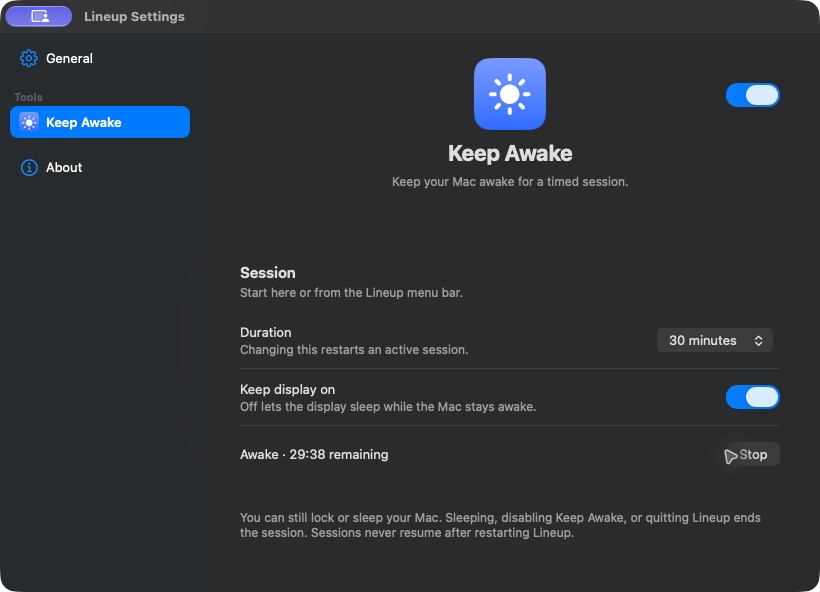
Keep Awake is a new tool that stops your Mac from going to sleep while it's idle, for as long as you choose. Turn it on in Settings, then start a 15-minute, 30-minute, 1-hour or 2-hour session from its page or from the Lineup menu bar. You see the time left and can stop early. Keeping the display on is a separate option, off by default. A session ends when time runs out, when you put the Mac to sleep, or when you turn the tool off or quit, and it never resumes on its own.
World Clock
World Clock is a new optional tool with its own menu bar panel. Search cities and time zones offline, compare their hours with yours, look up to 24 hours ahead or back or enter an exact time, and see the next sunrise and sunset. Pin one place to show its live time in the menu bar. It needs no location permission or network connection.
Apps return to their zone
Zones remembers where you last placed each app with a shortcut or a drag, and puts the app's first window back in that zone the next time it opens. Windows already open stay where they are. Editing a display's layout clears its remembered placements, so place the app again to teach it the new layout.
Zone shortcuts across displays
Zone shortcuts are now numbered across all your displays instead of restarting at 1 on each one, so a shortcut keeps pointing at the same display's zone as monitors connect and disconnect. A shortcut for a display that isn't connected does nothing rather than moving a window somewhere else.
Choose Stable or Nightly updates
In Settings > General, pick Stable for tested releases, as before, or Nightly to get the newest builds first, which may be less reliable. Going back to Stable waits for the next Stable release; Lineup never downgrades itself.
Fixes
- Hyperkey On macOS 27, Hyper Key no longer reports that another app has remapped Caps Lock when none has.